How EDR Killers Bypass Security Tools
By 0xSnow on March 19, 2026


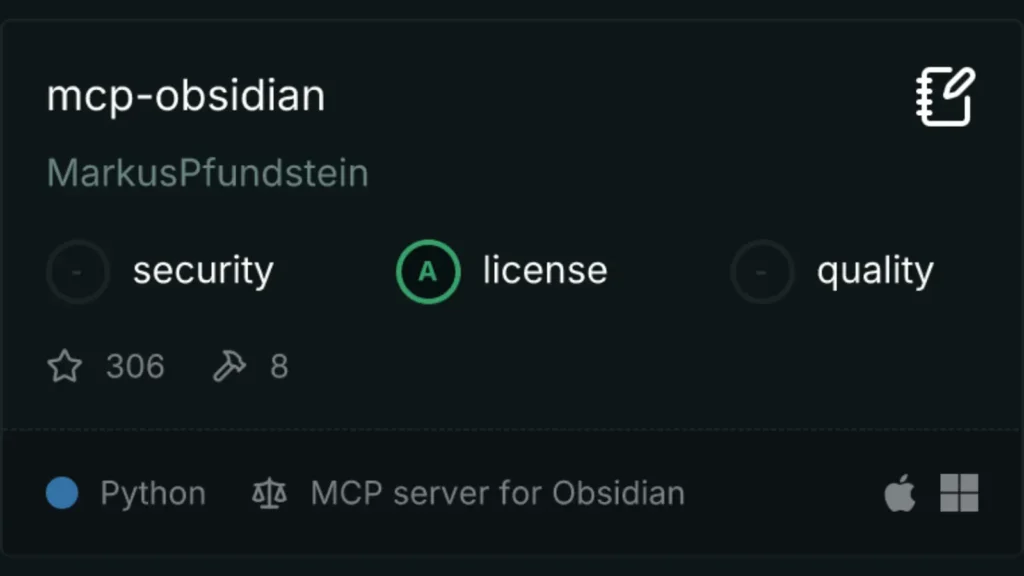
The MCP server for Obsidian connects AI assistants with an Obsidian knowledge base through the Model Context Protocol (MCP). It allows compatible assistants, such as Claude Desktop, to search notes, retrieve file contents, and create or update Markdown documents through supported tools.
This integration is useful for people who maintain personal knowledge bases, technical documentation, meeting notes, project plans, and research libraries in Obsidian. Instead of manually searching through a vault, users can ask an AI assistant to locate relevant information, summarize notes, or organize content into new documents.
The referenced mcp-obsidian project uses the Obsidian Local REST API plugin to communicate with the vault. Access depends on the server configuration, plugin settings, and permissions available to the connected client.
The list_files_in_vault tool lists files and directories in the vault’s root directory. It helps an AI assistant understand the available notes and locate documents for further processing.
The list_files_in_dir tool retrieves files and directories within a specified location. This makes it easier to work with organized folders containing project notes, research materials, or meeting records.
The get_file_contents tool retrieves the contents of an individual file. An assistant can use the returned text to summarize a technical discussion, extract action items, or answer questions about existing documentation.
The search tool searches vault documents for a specified text query. For example, a user could ask an assistant to find references to Azure Cosmos DB and explain how the topic appears across project notes.
The patch_content tool inserts or modifies content relative to supported locations, such as headings, block references, or frontmatter fields. This can help maintain structured notes without manually locating the relevant section.
The append_content tool adds content to a new or existing file. Users can request meeting summaries, project updates, or research notes to be written directly into their Obsidian vault.
After configuring the server, you can ask a compatible AI assistant to perform tasks such as:
summary meeting.md.Review generated summaries and edits before relying on them. AI-generated content can omit context or misinterpret technical details, particularly when notes contain conflicting or outdated information.
Before configuring the MCP server, prepare the following components:
uvx.Install and enable the Obsidian Local REST API plugin using its official instructions. Configure its API access and note the generated API key. Keep the plugin and server versions compatible, and consult the mcp-obsidian repository for current installation requirements.
The following example shows how a client configuration can launch the server through uvx and provide the REST API key through an environment variable. Configuration file locations vary by operating system and client.
{
  "mcp-obsidian": {
    "command": "uvx",
    "args": [
      "mcp-obsidian"
    ],
    "env": {
      "OBSIDIAN_API_KEY": "YOUR_API_KEY"
    }
  }
}
Replace YOUR_API_KEY with the key generated by the Local REST API plugin. Use the configuration format expected by your MCP client, and restart the client if required to load the new server entry.
Some setups support loading the API key from a .env file in the working directory. The entry would look like this:
OBSIDIAN_API_KEY=YOUR_API_KEY
Confirm that the server actually loads the environment file before relying on this method. Avoid committing configuration files containing API keys to version control. For related Python tooling, see our guide to the uv Python package manager.
The MCP Inspector can help developers test MCP tools, examine server communication, and investigate configuration issues. The original project instructions provide this example for launching the server through uv:
npx @modelcontextprotocol/inspector uv --directory /path/to/mcp-obsidian run mcp-obsidian
Replace /path/to/mcp-obsidian with the actual project directory. The exact launch command may differ by project version, so check the repository’s current development instructions if the command fails. Use the official Model Context Protocol documentation for additional information about clients, servers, and debugging tools.
An MCP server connected to Obsidian may be able to read or modify personal notes, depending on the tools and permissions it exposes. Treat the connection as access to your knowledge base rather than as a read-only search feature.
With appropriate configuration and access controls, the Obsidian MCP server can make a Markdown-based knowledge base easier to search, summarize, and maintain using compatible AI assistants.


.jpg "The Evolution of Online Finance Tools In a Tech-Driven World")