

How EDR Killers Bypass Security Tools
By 0xSnow on March 19, 2026


Telebix is a Python-based monitoring application that connects Zabbix infrastructure monitoring with a Telegram bot. It allows network administrators to receive infrastructure alerts in Telegram, retrieve monitoring information, and interact with their Zabbix environment through bot commands.
The application combines Python and shell scripts with a graphical interface, making configuration and monitoring more accessible to administrators. Telebix can run on a compatible computer once the required Zabbix credentials, Telegram bot token, and recipient ID have been configured.
Telebix may be useful for administrators who want monitoring notifications delivered to a messaging platform they already use. For broader monitoring coverage, see this guide to Nmap network discovery and scanning.
Telebix requires a Telegram bot to exchange commands and monitoring messages. Create one before configuring the application.
/newbot.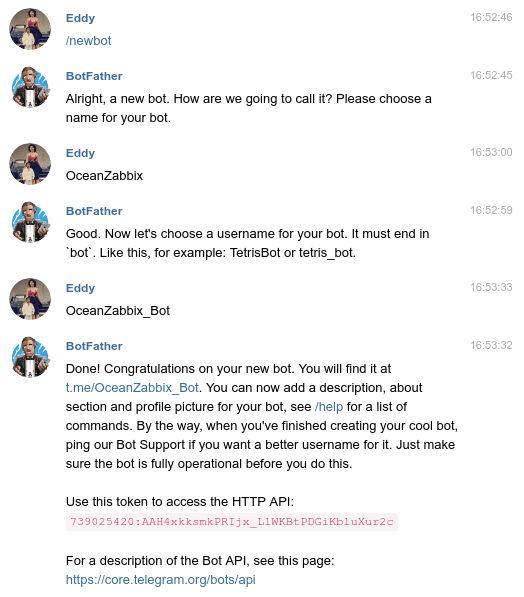
Security note: Treat the bot token like a password. Anyone who obtains it may be able to control the bot. Do not publish it in screenshots, source repositories, or shared configuration files.
Clone the project’s GitHub repository, enter the downloaded directory, and run its installation script. These commands reflect the installation procedure documented by the original project.
git clone https://github.com/Warflop/Telebix.git
cd Telebix
chmod +x setup.sh
sudo ./setup.sh --install
The setup script runs with elevated privileges, so inspect the script and confirm that it is suitable for your operating system before executing it. The repository is an older project; check its current availability and compatibility before installing it on a production monitoring server.
Launch Telebix and open the Settings tab. Enter the connection details required to let the application communicate with your Zabbix server and Telegram bot.
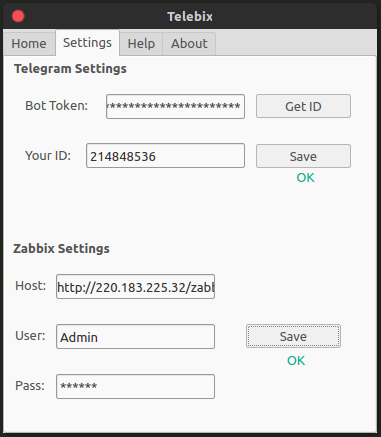
Configure the following fields:
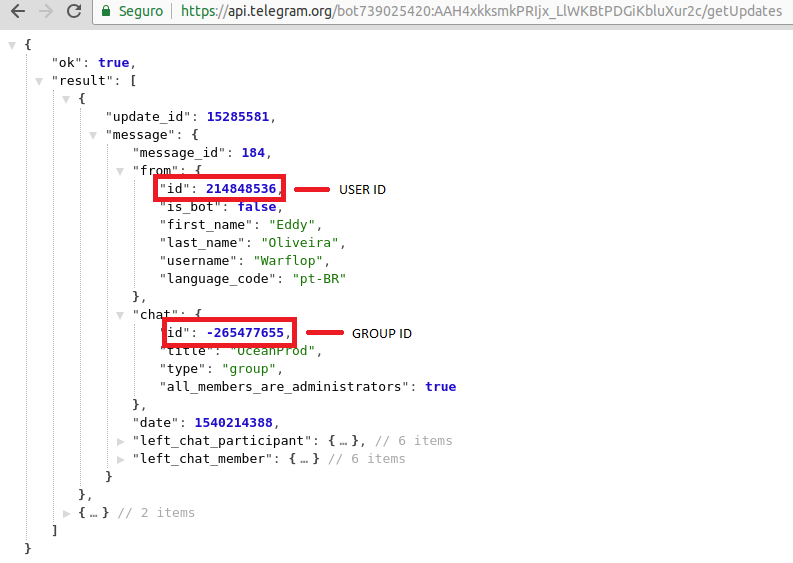
Telebix includes a GET ID button that may retrieve your Telegram user ID after you have interacted with the bot. If you need to look up updates manually, use the Telegram Bot API endpoint below, replacing TOKENHERE with your actual bot token:
https://api.telegram.org/botTOKENHERE/getUpdates
Check the returned update data for the relevant chat’s id value. A group ID can also be used if the bot and application configuration support sending messages to that group. Keep the token private because it appears in the API request URL.
After saving the settings, verify that Telebix can authenticate with Zabbix and communicate with Telegram. Send a test message or supported bot command, then confirm that the expected response reaches the configured account or group. Check the application logs and Zabbix configuration if messages do not arrive.
For reliable operation, use a dedicated Zabbix account with only the permissions the application needs. Restrict access to the Telegram bot, protect credentials, and test the setup in a non-production environment before relying on it for operational alerts.
The original article includes a video walkthrough covering the application and its configuration.
Watch the Telebix video tutorial on Vimeo
Project repository: Warflop/Telebix on GitHub.


.jpg "The Evolution of Online Finance Tools In a Tech-Driven World")


