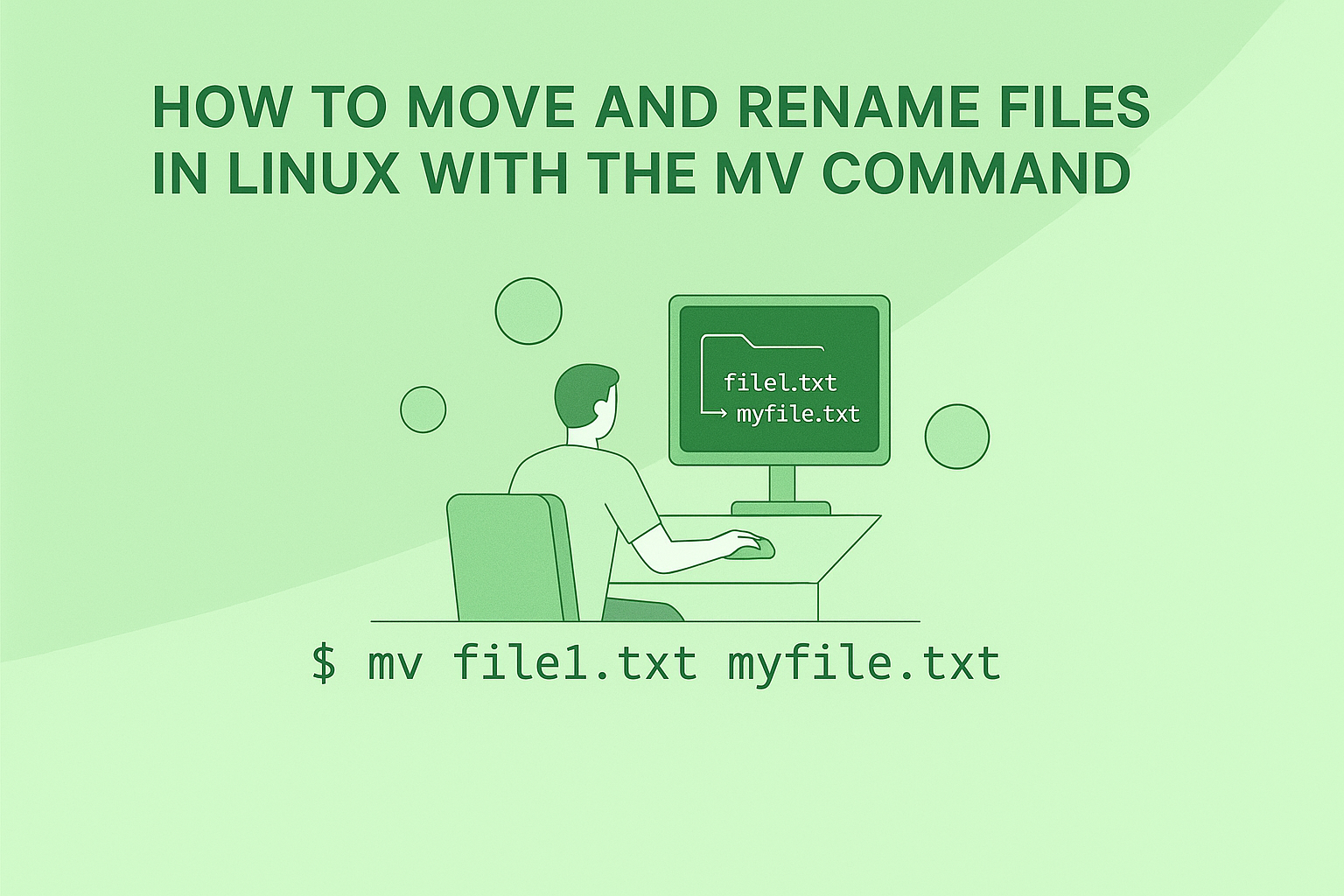
Managing files and directories is foundational for Linux workflows, and the mv (“move”) command makes it easy to relocate or rename items without hassle. Whether organizing a project, cleaning up folders, or updating your directory structures, mv is the tool to streamline these tasks.
mv Command Syntax
mv [options] source destination- source: The file(s) or directory(ies) you want to move or rename.
- destination: The target location or new name.
What Can You Do With mv?
- Move files to new locations.
- Rename files in the same folder.
- Organize directories by relocating them.
- Re-structure your filesystem quickly.
- Move multiple files at once, all in a single command.
Common Ways to Use mv: Fresh Examples
1. Renaming a File
Change the name of a file while leaving it in the current directory:
mv daily_report.txt summary_2025.txtThis command changes daily_report.txt to summary_2025.txt. If summary_2025.txt already exists, its contents get replaced, unless you use protections.
2. Moving a File to Another Folder
Relocate a file anywhere within the filesystem:
mv finance.xlsx ~/work/quarterly/This sends finance.xlsx to the quarterly subfolder inside your work directory.
3. Moving Multiple Files at Once
Transfer several files to a shared folder in one step:
mv photo1.jpg photo2.jpg photo3.jpg ~/images/events/All the listed images move to events inside images.
4. Renaming a Directory
Update a folder’s name to reflect a new purpose:
mv draft_docs final_docsNow all contents under draft_docs appear in final_docs.
5. Moving Directories
Move an entire folder including everything inside it to a different place:
mv scripts/ ~/bin/This sends the scripts directory and its files to your private bin folder.
Key Options for Greater Control
| Option | What it Does |
|---|---|
| -i | Interactive. Ask before replacing an existing destination file or folder. |
| -f | Force. Overwrite any existing destination file without prompting. |
| -n | No clobber. Prevent overwriting existing files or directories at the target location. |
| -b | Backup. When overwriting, create a backup of the original with a tilde suffix. |
| -u | Update. Move the source only if it’s newer than the destination or if the destination is missing. |
| -v | Verbose. Show all files and folders as they’re being moved or renamed, with action details. |
| –help | Print help message about command usage and exit. |
| –version | Show the current version of the mv tool and exit. |
How to Avoid Common Pitfalls
- If prompted about replacing a file, use
-ito require confirmation. - Use
-nwhen you want to ensure nothing gets overwritten accidentally. - Always double-check your source and destination paths for typos—
mvwill overwrite without warning if you don’t use protections.
Handling Permission Issues
If you’re trying to move or rename files in a protected system folder (such as /usr/local), prepend sudo to your command:
sudo mv setup.conf /etc/appsettings/Authenticate as needed to complete sensitive moves.
Moving with Wildcards
To move all PDFs in your current directory into an archive:
mv *.pdf ~/archive/Conclusion
From relocating reports and images to saving time in directory renames, the mv command is a daily driver for Linux users. Learn its flexible options to boost data safety, speed up file management, and maintain tidy, organized folders—no matter the size or complexity of your projects.